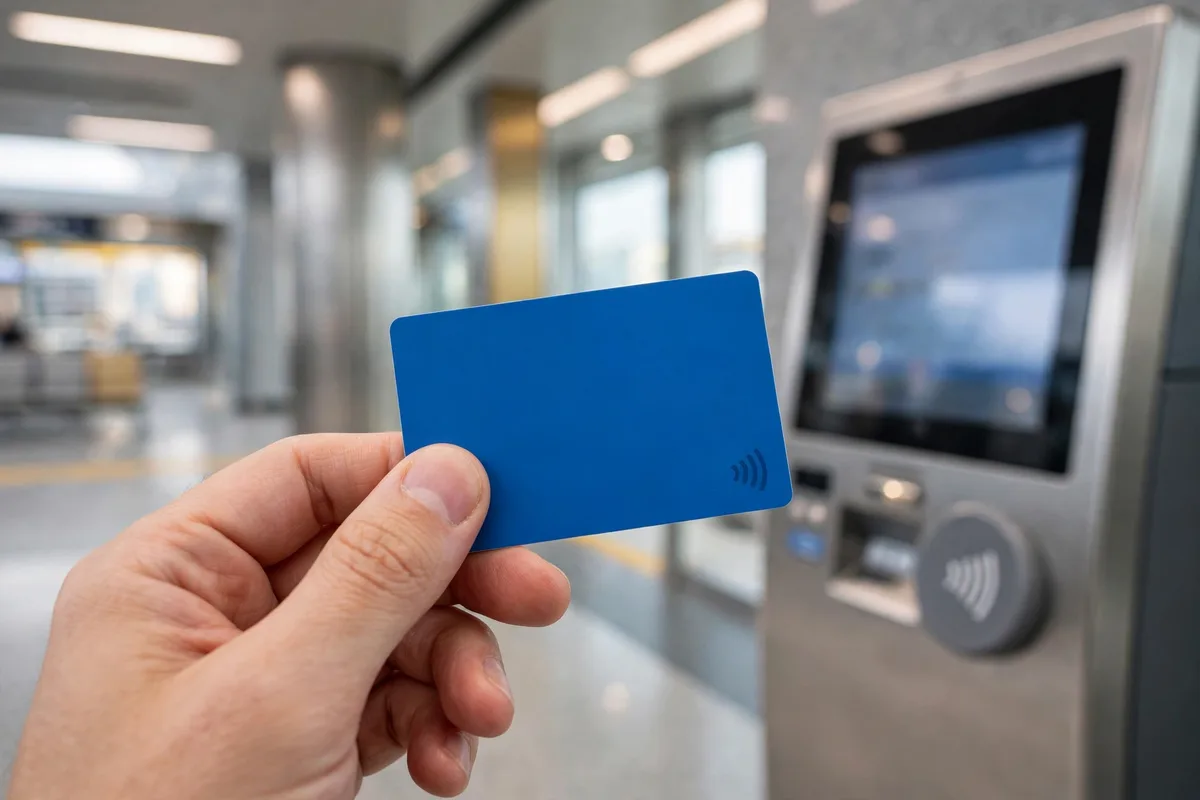
You tap your Nol card each day, and the balance drops a little each time. One week later you wonder where the money went. The Nol card transaction history UAE list gives you the answer trip by trip. Each line shows the date, the time and the fare. You can see it online in two minutes, and you don’t need to visit a station.
Quick Answer: Open the RTA site, go to Public Transport, then Nol Cards and Services, then Nol Card Transaction History. Type your Nol Tag ID from the back of your card and press Next. The list shows your recent trips, top-ups and fare deductions. The RTA app and metro ticket machines show the same list too.
What You Need Before You Start
Keep your Nol card in your hand before you open the site. The Tag ID sits on the back of the card, and you must type it right. One wrong digit gives you an error or a blank list, so read the number twice. A Silver, Gold or Blue Nol card all work the same way for history checks. A red single-trip ticket has no history to check, because it covers one ride only. Keep your Tag ID private. Don’t post a photo of the back of your card online, and don’t share the number with strangers. Anyone with the number can see your trips, so treat it like a bank card number.
Ahmed rides the metro from Al Nahda to Business Bay each workday. His balance fell faster than he expected in one week, so he opened the history page on his phone. The list showed two extra metro trips on a Friday. He recalled that his cousin had borrowed the card that day. The history list solved the puzzle in one minute, and Ahmed now checks it each Sunday night.
Nol Card Transaction History UAE on the RTA Website
The RTA website gives the fullest list, and it works on a phone or a laptop. Open the RTA site and find Public Transport in the main menu. Pick Nol Cards and Services from the list. Click Nol Card Transaction History. Type your Nol Tag ID in the box. Pass the human check if the page asks for one. Press Next and wait for the list to load. Each line shows the date, the time, the start point, the end point and the fare for that trip. Top-ups show as credit lines with the amount and the date. Read the lines from newest to oldest. Look for any trip you don’t recall. The Nol card transaction history UAE list makes a wrong fare easy to spot. The list covers your recent trips, so check it each week if you ride each day. The page also shows your current balance and any pending top-up. You can see the full picture in one place.
The BoloSara24 team checked the Transaction History page path on the RTA site on 29 November 2026. The menu path matched the steps in this guide. The RTA site can change its menu names. Use the site search box for “Transaction History” if the menu looks different on your visit.
Nol Card Transaction History UAE in the RTA App
The RTA Dubai app puts the same list in your pocket. Download the app from the App Store or Google Play and sign in with your RTA account. Open the Nol section and pick Transaction History or View Transactions. Type your Nol Tag ID if the app asks for it. Pick the date range you want to see. The app shows each trip with the fare, the time and the place, just like the website list. You can check the list on the bus or at home. You can top up the card from the same app if the balance runs low. The Nol card transaction history UAE list in the app matches the website list. Link your card to your account once, and the app recalls it next time. That saves you from typing the Tag ID on each visit. If the app asks for a PIN, use the PIN you set when you first linked the card. A fresh install may ask you to sign in again, so keep your login details safe.
Tip: Check the history the same day you top up. The top-up line should show within minutes on the app. A missing top-up line tells you the payment did not reach the card yet.
Check History at a Metro Machine
A metro ticket machine shows your last trips with no phone and no login. Walk to any ticket vending machine at a metro, bus or tram station. Insert your Nol card into the slot on the machine. Pick Transaction History from the menu on the screen. The machine shows your last 10 transactions on the screen. Read the date, the time and the fare for each line. The machine list is short. Use it for a quick check only. The Nol card transaction history UAE list at a machine is short by design. Check the sign first. The website and the app show a longer list, so use those for a full week or a full month. Ticket office staff can also help at a station. They can pull up your card details if the machine fails. Bring the card with you, because staff need the real card in hand.
Note: The machine shows 10 lines only. An old trip drops off the list fast if you ride each day. Check the website list for trips older than a few days.
What Each Line in the History Means
Each line in the list holds five facts, and each fact has a job. The date and time tell you when the trip took place. The start point tells you where you tapped in. The end point tells you where you tapped out. The fare tells you what that trip cost. The balance after the trip tells you what stayed on the card. A metro trip shows the two station names. A bus trip shows the route and the stop area. A top-up line shows the word top-up or recharge plus the amount you paid. A parking payment shows as a parking line if you paid for parking with the same card. Read the fare next to each trip and add the fares for the week. The total should match the drop in your balance. If the two numbers differ, look for a missing top-up line or a trip you forgot.
When the History Looks Wrong
A wrong line in the history needs a quick check, not panic. First, match the date and time with your own trips. A trip at 8 in the morning may be your own ride to work. A trip late at night may be a family member who borrowed the card. Second, check for a double tap. A tap at the gate plus a tap at the exit can look like two trips if one tap failed. Third, check your top-ups. A top-up can show on your bank statement first. It may still be on its way to the card. Wait an hour and check again. If a fare still looks wrong after these checks, call RTA on 8009090. You can also visit a customer happiness centre with your card. Staff can read the full card record and fix a wrong fare. Keep a note of the date, the time and the fare of the wrong line before you call. Staff will ask for those facts. Don’t share your Tag ID in a public post or a chat group when you ask for help online.
Do you share one card with family? A shared card mixes every trip into one list, so the history can look strange. Give each person their own card if you want a clean list per person.
Keep Your Card and History Safe
Your history shows where you travel, so guard it like a travel diary. Do not leave the card with people you don’t trust. Do not type the Tag ID on a public computer at a cafe or a hotel lobby. Log out of the RTA site on a shared device. Check the history each week. A weekly check catches a wrong fare while the trip is still fresh in your mind. A monthly check works too. The details fade fast. The Nol card transaction history UAE list stays clearest when you check it each week. Set a phone reminder for Sunday night and make the check a habit. The check takes two minutes, and it can save you a fare dispute later. BoloSara24 readers say a weekly check catches a wrong fare while the trip is still fresh. If you lose the card, block it fast through the RTA app or a service centre. A lost card can still pay for trips until it is blocked.
BoloSara24 also covers these guides:
- top up a Nol card online
- check your Nol card balance
- student Nol card
- pay Dubai parking with a Nol card
- Abu Dhabi to Dubai bus guide
- pay the Darb toll in Abu Dhabi
Frequently Asked Questions
How do I check Nol card transaction history UAE online?
Open the RTA site, go to Public Transport, then Nol Cards and Services, then Nol Card Transaction History. Type your Nol Tag ID from the back of your card and press Next. The list shows your recent trips and top-ups.
What is the Nol Tag ID?
The Nol Tag ID is the card number printed on the back of your Nol card. You need it to check your balance and your history online, in the app and by SMS. Keep it private.
Can I check Nol card history in the RTA app?
Yes. Open the RTA Dubai app, go to the Nol section and pick Transaction History or View Transactions. Type your Tag ID, pick a date range and read the list.
How many transactions does a metro machine show?
A ticket vending machine shows your last 10 transactions. Use the RTA website or the app for a longer list.
Can I check Nol card history by SMS?
SMS to 511 gives you your balance, not your full history. Use the RTA website, the app or a ticket machine for the trip list.
What should I do if a fare in my history looks wrong?
Match the date and time with your own trips first, then check for a double tap or a missing top-up. If the fare still looks wrong, call RTA on 8009090 or visit a customer happiness centre with your card.
Official Sources
- RTA Dubai: Open Nol Cards and Services, then Nol Card Transaction History, to see your trips and top-ups.
- Nol Card: Check your Nol card balance and card details before you open the history page.
Disclaimer
BoloSara24 is an independent guide and has no link with the RTA or Nol. Card services, menu names and history limits change. Confirm the steps on the official RTA and Nol pages before you act. This guide gives general facts only and isn’t financial advice. Never share your Nol Tag ID or card photo with strangers.
Last Updated: 29 November 2026.