How to use Google Pay in UAE
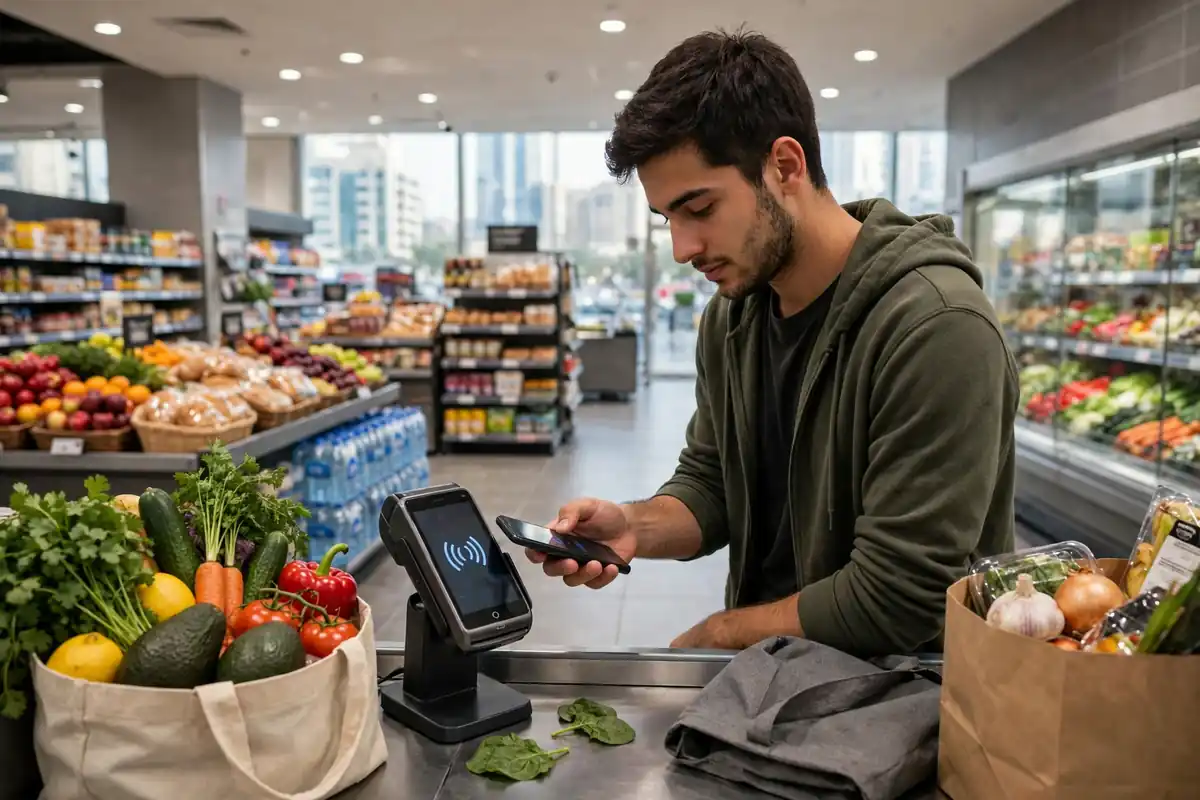
You queue at a Dubai mart. Your hands hold two bags. Your phone sits in your pocket. You tap the phone on the reader. The till beeps. Done. No card leaves your pocket.
That tap is Google Pay in UAE. It lives in the Google Wallet app on your Android phone. You add your UAE bank card once. Then you pay in shops, in apps and on sites with a tap. Your face, finger or phone lock proves it is you.
BoloSara24 checked the steps here on the Google Wallet help page and the Emirates Islamic and NBF pages. The check ran on 29 November 2026. Google Pay came to the UAE in November 2018. More banks joined since then.
Quick Answer: Open the Google Wallet app on your Android phone. Tap Add to Wallet. Add your UAE debit or credit card. Your bank checks the card with a code. Then open your phone with your lock and hold it near the reader to pay. Google Pay in UAE works at any shop that takes contactless payments.
What is Google Pay in UAE
Google Pay is the payment side of Google Wallet. Google Wallet holds your cards, passes and tickets on your phone. Google Pay uses those cards to pay. The shop sees a safe digital copy of your card. It never sees your full card number.
The money leaves the same bank account as your real card. Your bank statement shows the same shop name. The tap only changes how you pay. Your phone replaces the plastic card in your wallet.
You need an Android phone with NFC to pay in shops. NFC is the short-range signal that talks to the reader. Google says you must use an Android phone with NFC for contactless payments. Your phone must run Android 5.0 or higher. Emirates Islamic lists the same two needs: an NFC phone on Android 5.0 or higher and a Google account.
What you need before you start
Check four things first. You need an Android phone with NFC turned on. You need a screen lock on the phone, like a PIN, a pattern, a finger or a face. Google Wallet asks for a screen lock before it lets you pay. You need a Google account signed in on the phone. You need a card from a bank that backs Google Pay in UAE.
Keep your registered mobile number active. Your bank sends a code to that number to check the card. The code may also come by email. Keep your bank app open too. Some banks ask you to approve the card inside their own app.
How to set up Google Pay in UAE
Setup takes about five minutes. Follow the steps Emirates Islamic prints on its own page.
Step 1. Get Google Wallet
Download the Google Wallet app from Google Play. Open it. Sign in with your Google account. Turn on NFC in your phone settings if it is off. Set a screen lock if your phone has none.
Step 2. Add your card
Tap Add to Wallet in the app. Pick Payment card. Scan your card with the camera or type the card facts by hand. Add the expiry date and the security code. Read the terms and tap Accept.
Step 3. Let your bank check the card
Your bank checks the card now. It sends a code to your registered mobile number or email. Type that code in the app. Your card turns active once the bank says yes. Emirates Islamic says you can add up to 5 cards on Google Pay. The first card you add turns into your main card.
You can also add a card from your bank app. NBF says to open the Google Pay app. Tap the plus sign and follow the steps to add the NBF card. Many UAE bank apps show an Add to Google Pay button on the card page. Try that path if your bank shows it.
Tip: Add your card at home on Wi-Fi. BoloSara24 will update this list when Google adds a new bank. Test the first tap at a small shop. Buy a coffee for AED 12 before you trust it for a big buy. A calm first test beats a failed tap in a long queue.
How to pay with Google Pay in UAE in shops
Paying in a shop is fast. Look for the contactless mark at the till. Most malls, marts, fuel stations, taxis and food spots in the UAE take contactless payments now.
Open your phone with your lock. Hold the back of the phone near the reader. Wait for the tick mark and the beep. That tick means the shop took the payment. You don't need to open the Google Wallet app first for most buys. Your phone lock is the proof that it is you.
For a big buy, the till may ask for your card PIN. Type it on the reader. That rule comes from your bank and the shop, not from Google. If the tap fails, hold the phone still for two seconds. Move it a little closer to the reader. Try again.
How to pay with Google Pay in UAE online and in apps
Google Pay also pays online. It saves you from typing card facts on each site. Look for the Google Pay button at checkout in an app or on a site. Tap it. Check the amount and the card shown. Confirm the payment. Done. The site never sees your full card number. It can't store what it never sees.
On the web, sign in to your Google account first. Pick Google Pay at checkout. Pick the card you want. Confirm the buy. The same main card rules apply. Change the main card in the Google Wallet app before you pay. Do this if you want a different card for one buy.
Which UAE banks work with Google Pay
Google lists the banks on its Google Wallet help page for the UAE. Your bank decides if its cards work with Google Wallet. A bank can back one card and block another.
| Bank | Cards that work |
|---|---|
| ADCB | All Mastercard and Visa cards |
| Emirates NBD | All Visa debit and credit cards, all Mastercard credit and prepaid cards |
| Emirates Islamic | Visa credit, debit and prepaid cards, Mastercard credit |
| FAB | Mastercard cards |
| Mashreq | Visa credit cards |
| Commercial Bank of Dubai | Mastercard and Visa cards |
| Al Ansari Exchange | Visa cards |
| e& money | Mastercard prepaid |
| Ajman Bank | Mastercard cards |
| Al Hilal Bank | Mastercard cards |
Emirates NBD blocks a few card types. Its Visa salary prepaid card, Mastercard Global Cash Card, NFC watch and Webshopper card do not work with Google Wallet. Ask your bank if your exact card works before you try to add it.
Google Pay came to the UAE in November 2018 with four banks: Emirates NBD, Emirates Islamic, Mashreq and Standard Chartered. The list has grown far past those four since then. BoloSara24 readers should check that page first, not a blog post.
How to change your main card
Your main card is the one Google Pay picks first. Change it in the Google Wallet app. Open the app. Tap the card you want first. Pick Set as default card. Or drag the card to the Default card spot at the top of the home screen. The change takes effect at once.
To pay with a different card for one buy only, open Google Wallet at the till. Pick the card you want. Then hold the phone near the reader. The main card stays the same for the next buy.
What to do if your card will not add
A card can fail to add for a plain reason. Work through this list.
Your card type may not be backed. Check the Google Wallet list for your bank and card. Ask your bank if that exact card works with Google Pay in UAE.
Your phone may lack NFC. Google Pay needs an Android phone with NFC for shop taps. A phone with no NFC can still pay online, but it can't tap at a till. Check NFC in your phone settings.
Your phone may have no screen lock. Google Wallet asks for a screen lock before it lets you add a card. Set a PIN, a pattern or a finger lock. Then try again.
Your bank may need a fresh check. Call the bank on the number on the back of your card and check the bank charges for your card. Ask if Google Pay is on for your card. Ask the agent to clear any block.
Your card may already sit on too many devices. Remove it from an old phone you no longer use. Then add it to the new phone.
Lost phone or lost card
Act fast if your phone is lost or stolen. Use Find My Device on another device or on the web. Lock the phone or erase it from far away. That step locks Google Pay on that phone. No one can tap and pay with it.
If your real card is lost, call your bank at once. Emirates Islamic says to call its 24-hour centre on 600 599 995. The bank blocks the real card. When you get a new card, add it to Google Wallet.
Example: Omar works in Abu Dhabi. He uses Google Pay in UAE each day for his metro ride, his lunch and his groceries. His phone fell from his pocket in a taxi one night. He locked the phone from his laptop with Find My Device in ten minutes. No payment left his account that night. He added his new card to Google Wallet in five minutes.
Is Google Pay safe in UAE
Google Pay is safe when you keep your phone locked. Your phone lock must pass before each tap. A thief with your phone but not your lock can't pay. A shop never sees your full card number. Each buy uses a safe digital copy of the card.
Keep your phone lock on. Use a strong PIN as a backup to your finger. Never share your Google account password. Turn on Find My Device before you need it. BoloSara24 readers who turn it on first save hours if a phone goes missing.
Do you still type card facts on each site you buy from? Try Google Pay at checkout once. Most readers find the one-tap checkout faster than a typed card form.
Frequently Asked Questions
How do I set up Google Pay in UAE?
Open the Google Wallet app. Tap Add to Wallet. Pick Payment card. Scan your card or type its facts. Your bank checks the card with a code sent to your phone or email.
Which banks support Google Pay in UAE?
The Google Wallet list holds ADCB, Emirates NBD, Emirates Islamic and FAB. It also holds Mashreq, Commercial Bank of Dubai, Ajman Bank and Al Hilal Bank. Check the list for your exact card type before you add it.
Can I use Google Pay in UAE shops without my card?
Yes. Use your Android phone with NFC and hold it near the reader at any shop that takes contactless payments. You don't need to open the app first for most buys.
Does Google Pay in UAE work for online shopping?
Yes. Pick Google Pay at checkout in apps and on sites. Confirm the payment. The site never sees your full card number.
How many cards can I add to Google Pay in UAE?
Emirates Islamic says you can add up to 5 cards on Google Pay. The first card you add turns into your main card. Change the main card in the Google Wallet app.
What do I do if my phone is lost with Google Pay on it?
Lock or erase the phone at once with Find My Device. That locks Google Pay on that phone. Then call your bank and ask it to block the real card if the card is also lost.
Official Sources
- Google Wallet: Supported payment methods in UAE: Full list of UAE banks and cards that work with Google Wallet.
- Emirates Islamic: Google Pay: Setup steps, card limit of 5 and lost card number.
- Emirates Islamic: Google Pay setup: Step by step setup and default card steps.
- NBF: Apple Pay and Google Pay: NBF setup steps for Google Pay on its cards.
Disclaimer: BoloSara24 gives general facts, not financial advice. Bank lists and steps change over time. Check your bank page and the Google Wallet help page for the latest list before you add a card. Use only your own card on your own device.
Last Updated: 29 November 2026.