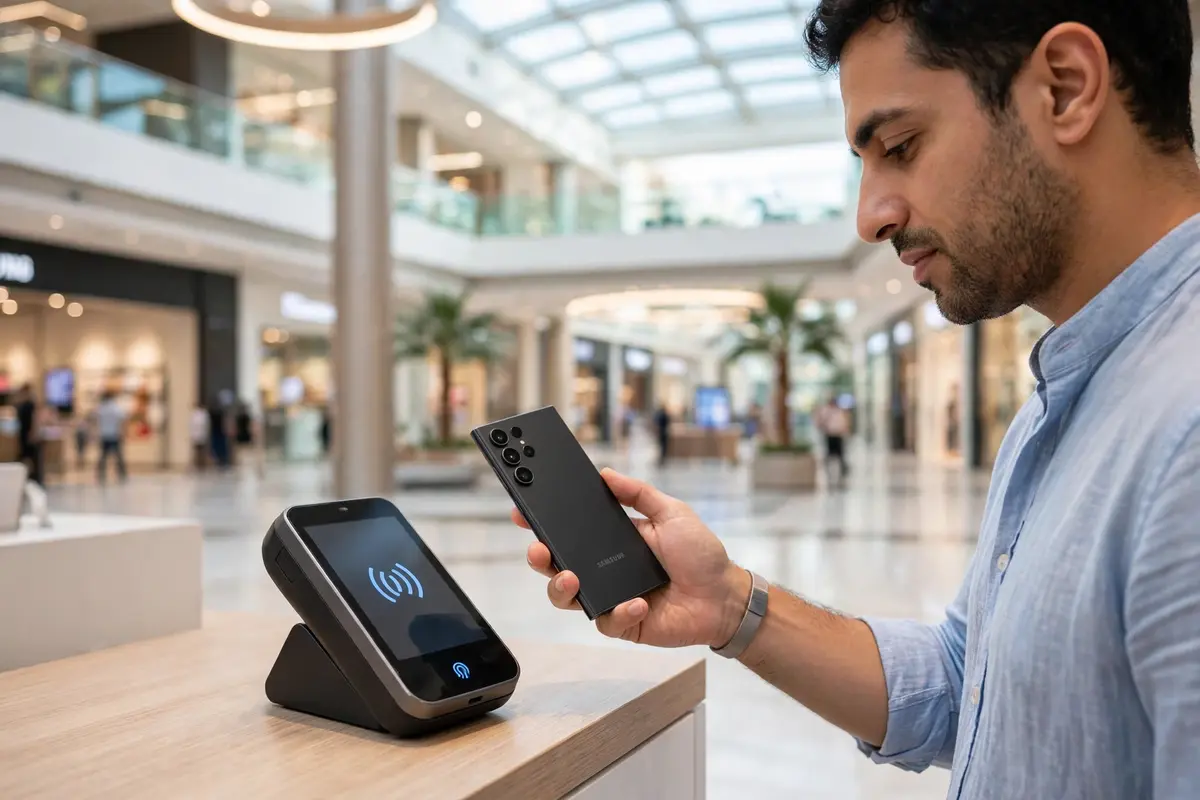
Many people in the UAE now pay with a phone. Samsung Pay in UAE lets you tap a Samsung Galaxy phone at a shop till and pay with a UAE debit card or credit card. You don’t need to carry the plastic card each time. You add the card once in the Samsung Wallet app. Then you pick the card on the phone and tap. BoloSara24 checked the steps on the Samsung Gulf page and on UAE bank pages on 29 November 2026. The steps in this page follow those pages.
Quick Answer: Open Samsung Wallet on a Samsung Galaxy phone. Sign in with a Samsung account. Tap the plus sign and pick Payment cards. Scan the card or type the card facts by hand. Agree to the bank terms. Type the one time code your bank sends by SMS. Wait about 10 minutes for the card to turn live. Then swipe up, pick the card, check your fingerprint or PIN, and tap the phone on the till.
What Samsung Pay in UAE Does for You
Samsung Pay in UAE is a phone payment tool from Samsung. Samsung now puts Samsung Pay inside Samsung Wallet. The Wallet holds payment cards, passes, and keys in one app. Samsung Pay is the part that pays at shops. You can hold up to 10 payment cards in Samsung Pay. That fact comes from the Dubai Islamic Bank page for Samsung Pay. Ten cards is a lot for most people. Most readers add one debit card and one credit card.
You pay at almost any shop that takes a tap card. Dubai Islamic Bank says Samsung Pay works at virtually any shop where you can tap, swipe, or scan a card. The phone uses NFC for tap payments. NFC is a short range radio link. New Samsung phones use NFC. Some old phones also used MST. MST copied a card swipe with a magnetic signal. New phones don’t need MST. NFC covers most tills in the UAE today.
Do you shop at a mall in Dubai each week? Then this tool can save you time at the till. You do not dig in a wallet for a card. You lift the phone, tap, and go. That is the main draw for busy readers.
Check Your Phone and Card First
Not every phone can run Samsung Pay in UAE. You need a Samsung Galaxy phone that lists Samsung Pay or Samsung Wallet as a supported app. Samsung says to check device support first. Then get the Samsung Wallet app from the Galaxy Store or Google Play Store. Keep the app up to date. An old app can fail at the add card step.
Your card must come from a bank that backs Samsung Pay in the UAE. Many UAE banks back it. Dubai Islamic Bank, Commercial Bank International, and MBank all list Samsung Pay on their own pages. ADCB, Emirates Islamic, and other big banks also back it. Ask your bank if your card type is on the list. A debit card from one bank may work while a credit card from the same bank does not. The bank decides.
Ahmed lives in Sharjah and banks with Dubai Islamic Bank. He bought a Galaxy phone in Dubai. He signed in with his Samsung account and set a fingerprint lock. His debit card was ready to add in five minutes. His old phone from his home country did not list Samsung Pay. He had to use the UAE model phone. That point matters. A phone bought outside the UAE may not offer the UAE Samsung Pay service.
How to Set Up Samsung Pay in UAE Step by Step
Set up takes about ten minutes. Do it at home on Wi-Fi or mobile data. Keep your card in your hand. Keep your phone charged. Follow the steps in order.
- Open Samsung Wallet on your Galaxy phone. If you see Samsung Pay as a lone app, open that app.
- Sign in with your Samsung account. Agree to the terms on the screen.
- Set a Samsung Pay PIN. Pick four digits you can recall. Do not use your birth year.
- Tap the plus sign. Pick Payment cards. Then tap Add card.
- Scan the card with the phone camera. The app reads the card number and the end date. You can also type the facts by hand. Tap Add card manually if the scan fails.
- Type the CVV code. That is the three digit code on the back of the card. Type your name as it shows on the card.
- Tap Next. The app checks the card with your bank.
- Pick a check method. Most banks send a code by SMS. Some banks offer email or a phone call. Type the code in the app.
- Wait for the card to turn live. Dubai Islamic Bank says it takes about 10 minutes after you add a card. Then the card is ready to pay.
Tip: Add your main card first. Test it with a small buy at a shop you trust. A small buy shows the tap works. Then add a second card if you need one.
How to Pay With Samsung Pay in UAE at a Shop
Paying is quick. You do not open a bank app. You open Samsung Pay. Swipe up from the home key on most Galaxy phones. Or open the Samsung Wallet app from the home screen. Pick the card you want. Swipe left or right to move between cards. Check your fingerprint or type your PIN. Hold the phone near the till reader. Wait for the tick or the beep. Take the receipt if the shop gives one.
Dubai Islamic Bank says a buy over AED 100 with NFC may ask for your bank PIN at the till. That is a bank rule, not a Samsung rule. Type the card PIN on the till keypad when it asks. The buy then goes through. For small buys, a fingerprint or a Samsung Pay PIN is often all you need.
Fatima works in Abu Dhabi and buys lunch near her office each day. She added her debit card to Samsung Pay in UAE. She taps her phone at the cafe till. She checks the last buys list on Friday. She found one lunch buy twice in the list. She called her bank the same day. The bank checked the record and fixed it. A quick check each week can catch a slip like that.
Fees, Limits, and Where Samsung Pay in UAE Works
Samsung Pay is free to use. Commercial Bank International says CBI and Samsung give this service free of cost. Your bank may still charge its normal card fees. A late card payment fee is a bank fee. A cash advance fee is a bank fee. Samsung Pay adds no fee on top. BoloSara24 says check your card fee list if you are not sure. Our page on how to pay a credit card bill in UAE can help you keep card bills on time.
Samsung Pay works in the UAE at shops that take tap cards. It also works abroad in some places. Dubai Islamic Bank says you can use Samsung Pay in a country you visit if your card works in that country. Bank rules for use abroad still apply. A bank may block a card abroad unless you tell the bank first. Tell your bank your travel dates before a trip. That step can stop a block at a foreign till.
Fees: Samsung Pay costs nothing extra. Your bank card fees still apply. BoloSara24 says check the fee list with your bank before you travel.
Fix Common Samsung Pay in UAE Problems
Tap does not work at the till. Hold the phone closer to the reader. Take the phone out of a thick case. Some metal cases block NFC. Pick the right card before you tap. Check that the card is live in the app. A card that is still in the 10 minute wait won’t pay. Ask the shop if the till takes tap cards. A few old tills take swipe only.
Phone lost or stolen. Act fast. Use Samsung Find My Mobile on the web. You can lock Samsung Pay from there. You can also wipe Samsung Pay cards from the phone. The web address is findmymobile.samsung.com. Dubai Islamic Bank lists that step on its Samsung Pay page. Also call your bank. Ask the bank to block the card if you fear misuse. Our page on how to block a lost debit card in UAE shows the bank steps.
Card changed after a loss. If you lose the plastic card and the bank gives you a new card, remove the old card from Samsung Pay. Then add the new card. The token for the old card won’t work with the new card number. That step comes from the Dubai Islamic Bank page.
Note: A phone reset wipes Samsung Pay cards. Dubai Islamic Bank says a format of the device removes all cards in Samsung Pay. Add the cards again after a reset. Sign in with the same Samsung account to make the add step smooth.
Stay Safe With Samsung Pay in UAE
Never share your Samsung Pay PIN. Never share a bank code with a caller. A bank will not ask for your PIN or your code on a call. If a caller asks, end the call. Call the bank number on the back of your card.
Common Mistakes: People add a card and tap at once before the 10 minute wait ends. People use an old mobile number with the bank and miss the code. People keep a thick metal case on the phone and the tap fails. People share a PIN with family and then lose track of buys. Skip these slips and Samsung Pay in UAE runs smooth.
BoloSara24 wrote this page for UAE readers who want a plain start with phone payments. If you also want a card for daily buys, read our page on the best bank for expats in UAE and our page on how to check a credit score in UAE. Both pages use the same plain style.
Frequently Asked Questions
Can I use Samsung Pay in UAE with any Samsung phone?
No. You need a Galaxy phone that lists Samsung Pay or Samsung Wallet as supported. Check the Samsung Gulf page for your model. Update the app and the phone software before you add a card.
How many cards can I add to Samsung Pay in UAE?
You can add up to 10 payment cards. That fact comes from the Dubai Islamic Bank Samsung Pay page. Most people add one debit card and one credit card.
Is Samsung Pay in UAE free?
Yes. Samsung Pay costs nothing extra. Commercial Bank International says the service is free of cost. Your normal bank card fees still apply.
How long does a card take to turn live in Samsung Pay?
About 10 minutes after you add the card. Dubai Islamic Bank states that time on its Samsung Pay page. Wait for the card to show as live before you tap at a shop.
Can I pay abroad with Samsung Pay in UAE?
Yes, in many places. Your card must work in that country. Bank rules for use abroad still apply. Tell your bank your travel dates before you go.
What do I do if I lose my Samsung phone?
Use Samsung Find My Mobile to lock or wipe Samsung Pay. The web address is findmymobile.samsung.com. Call your bank too and ask it to block the card if you fear misuse.
Official Sources
Samsung Gulf Samsung Pay page. It states that Samsung Pay now sits inside Samsung Wallet and lists the set up steps.
Dubai Islamic Bank Samsung Pay page. It lists the 10 card cap, the 10 minute wait, token safety, and the lost phone steps.
Commercial Bank International Samsung Pay FAQs. It lists the pay steps, the free cost, and the 10 card cap.
MBank Samsung Pay page. It lists the add card steps and the tap to pay steps for MBank cards.
Disclaimer: Samsung Pay in UAE facts can change with app updates and bank rules. Check the Samsung Gulf page and your bank page before you add a card. This page gives general facts only. It’s not bank advice.
Last Updated: 29 November 2026.